
Make sure you enabled Remote Desktop on your computer, then you can follow the next steps to establish an RDP connection with an IP address.
Pro Tips:
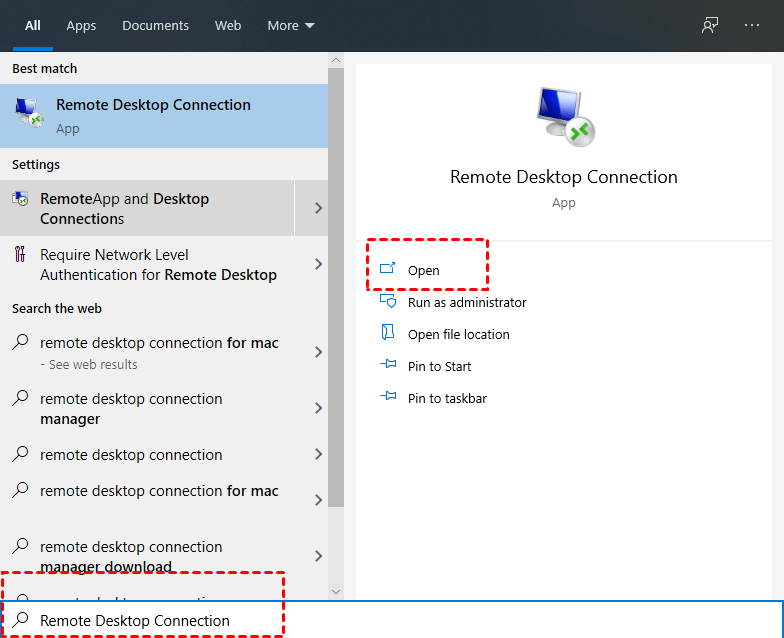
Step 1. On the client PC, Search for Remote Desktop Connection in the Search box and then click Open.
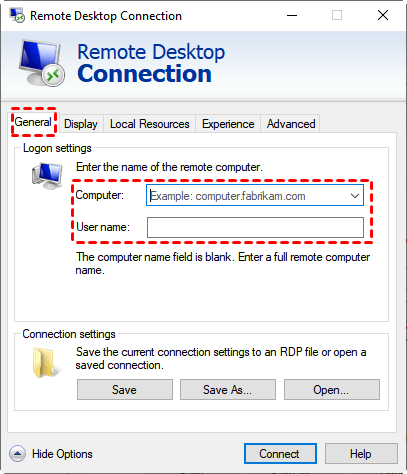
Step 2. Type in the IP and username of the host computer and click Connect. You can click Save or Save As to create a desktop shortcut.
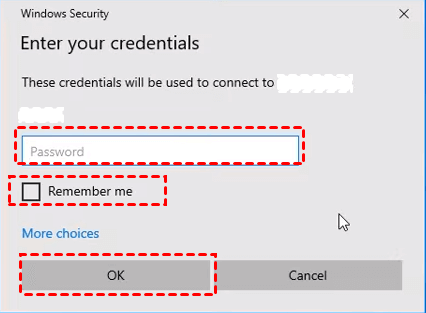
Step 3. If there is a pop-up window, input your password and then click OK.
Register any domain extension with us and get 30 days of Web Hosting absolutely free, Applicable to all Basic Plans, Except VPS Plans.
Choose a support option and we'll get you to the right place.




Attracting customers to your website is one thing but it’s speed that keeps them there. You can trust HostFast to deliver the lightning-fast loading speeds your site requires, no matter the scope of traffic you expect.
HostFast is subsidiary of The Netcom Digital Marketing Service

© 2020 – 2027 hostfast.pk – Premium Web Hosting, VPS, and Domain Registration Services

Save more every time you purchase hosting from HostFast. With our Instant Cashback Offer, you get money back immediately after completing your order — simple, fast, and rewarding.
*Terms & Condition Apply